
Photo Drawing
Your world, in color.
Turn a photo into a coloring page, then make it your own with brushes, tap-to-fill and a palette of 12 colors. Take a photo, choose one from your library or start with the sample — everything you need to draw works offline.
A photo. A blank page. A picture made by you.
Find your outlines
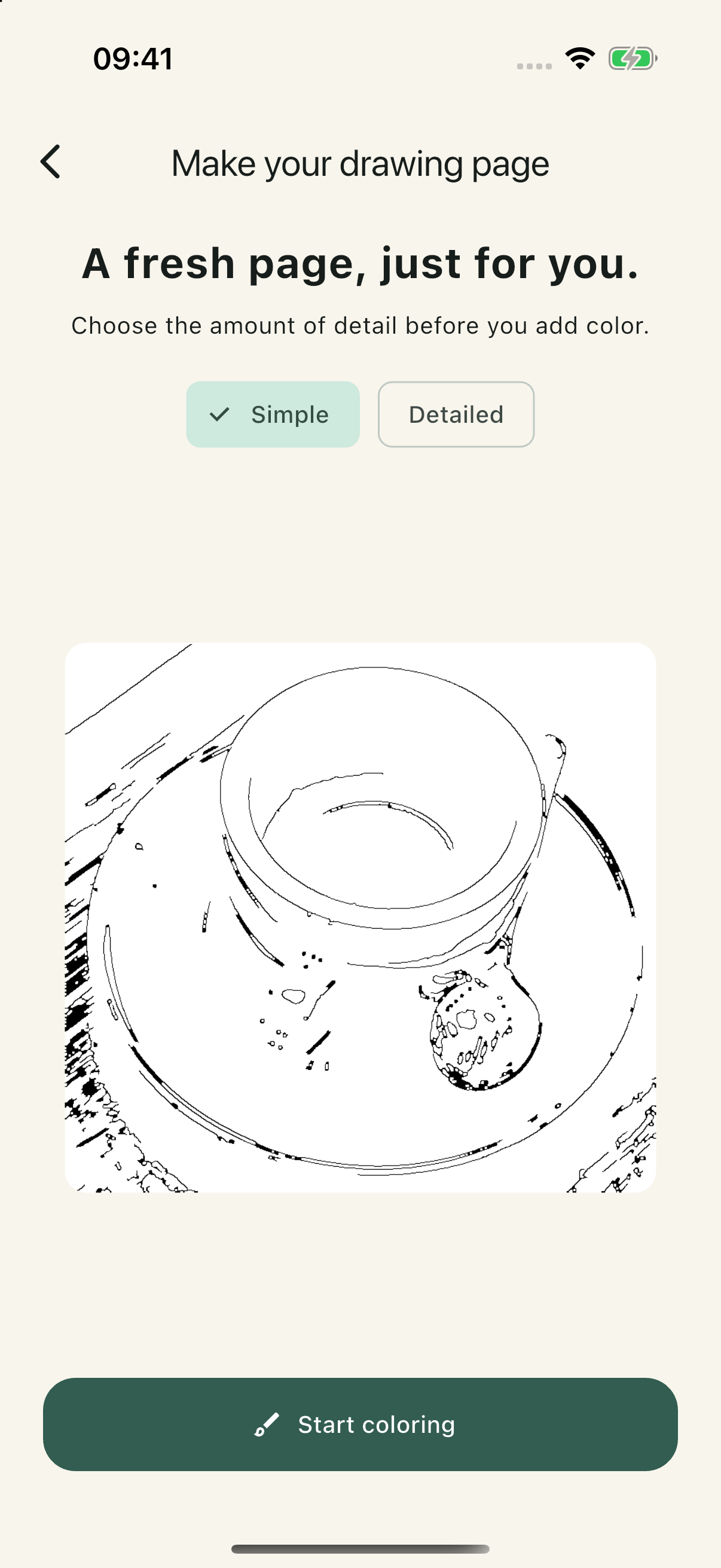
Take a photo, import one or try the sample. On-device edge detection creates a coloring page; choose Simple or Detailed to set the amount of linework.
Make it your own
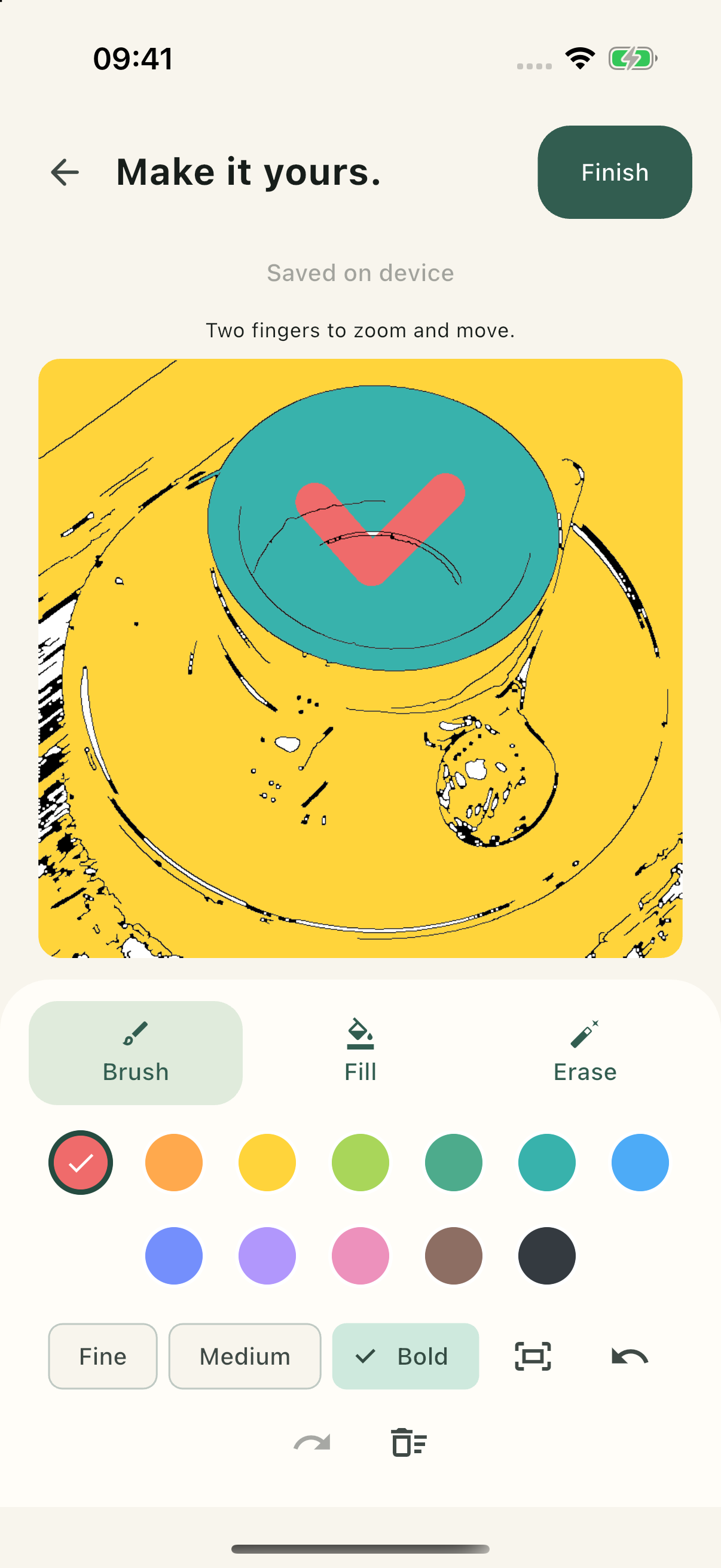
Use 12 colors and three brush widths, tap to fill an area or erase a stroke. Zoom and move with two fingers, and undo or redo your latest 20 edits.
Keep a little moment
Your picture autosaves to a local drawing library so you can return to it later. Finish with a PNG and choose where to share it through the system share sheet.
From a little moment to a colorful picture
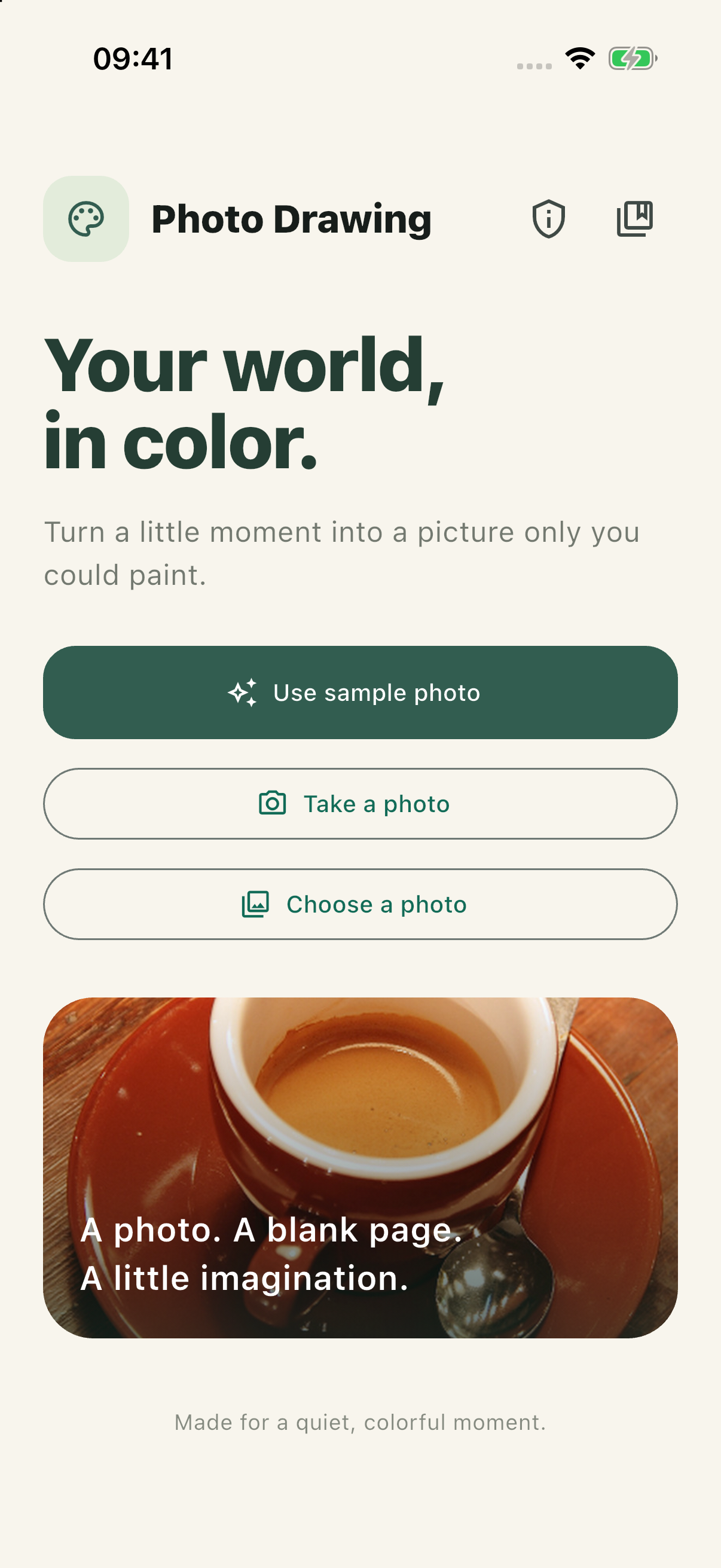
Actual iPhone screenshots, from choosing a photo to returning to a saved drawing.
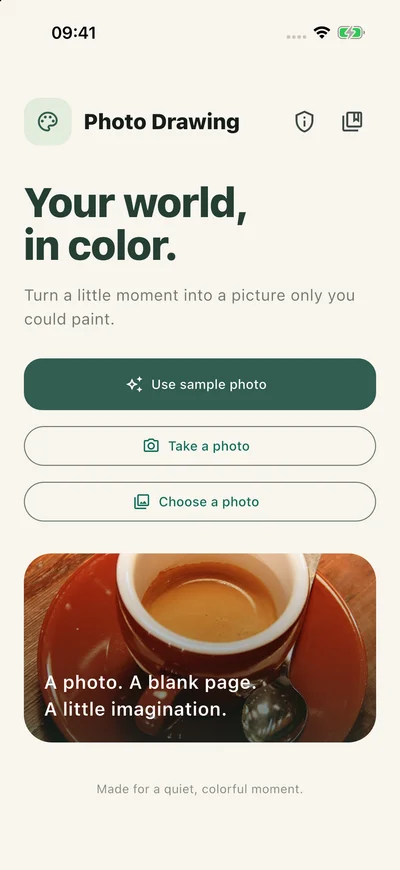
Start with a sample, take a photo or choose your own. 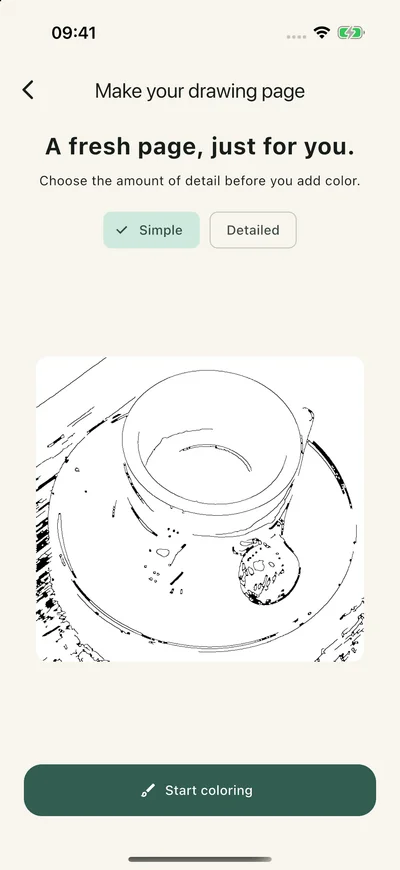
Choose Simple or Detailed outlines before adding color. 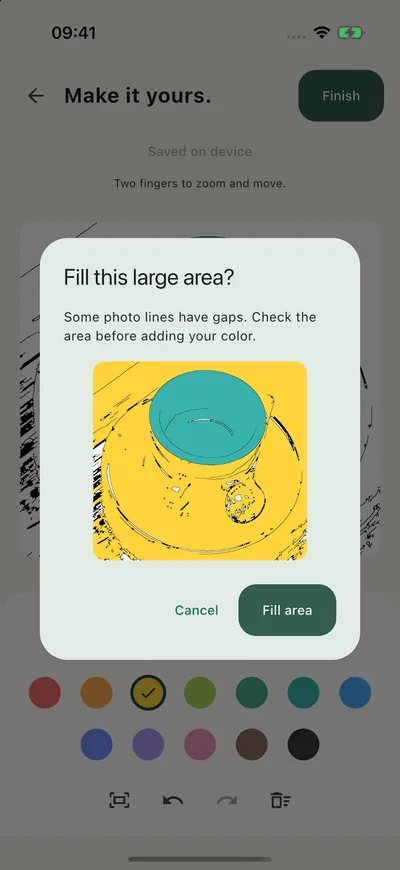
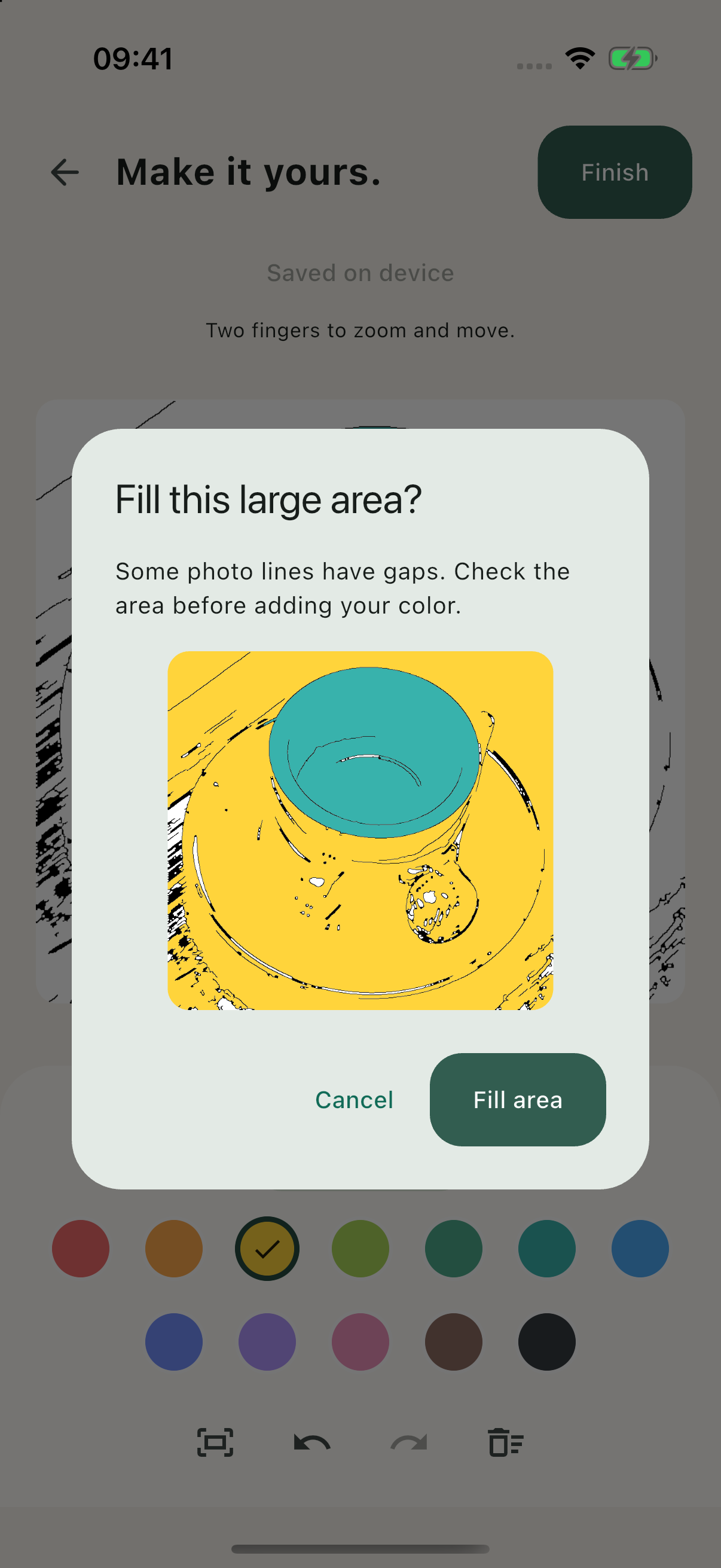
Preview a large fill before committing your color. 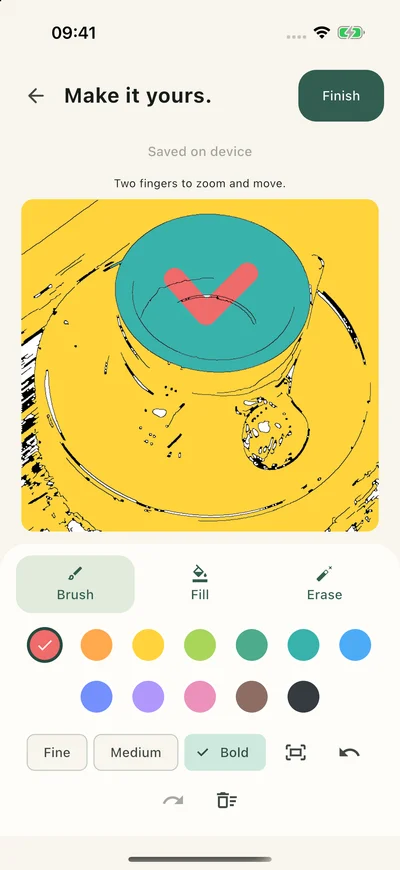
Paint, fill and erase with 12 colors and three brush widths. 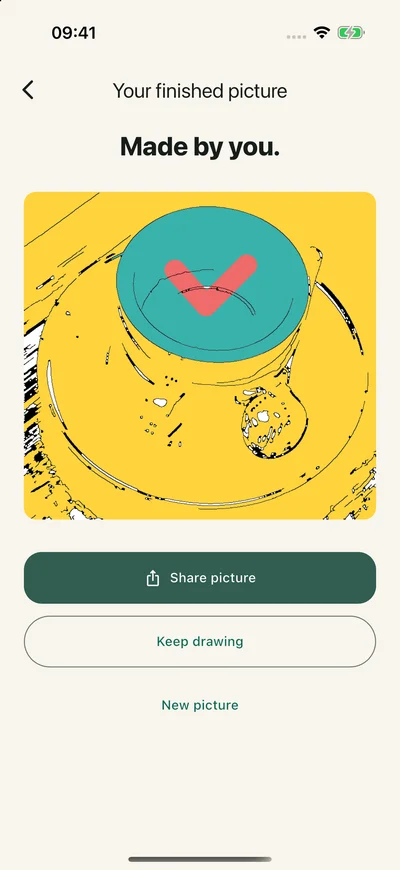
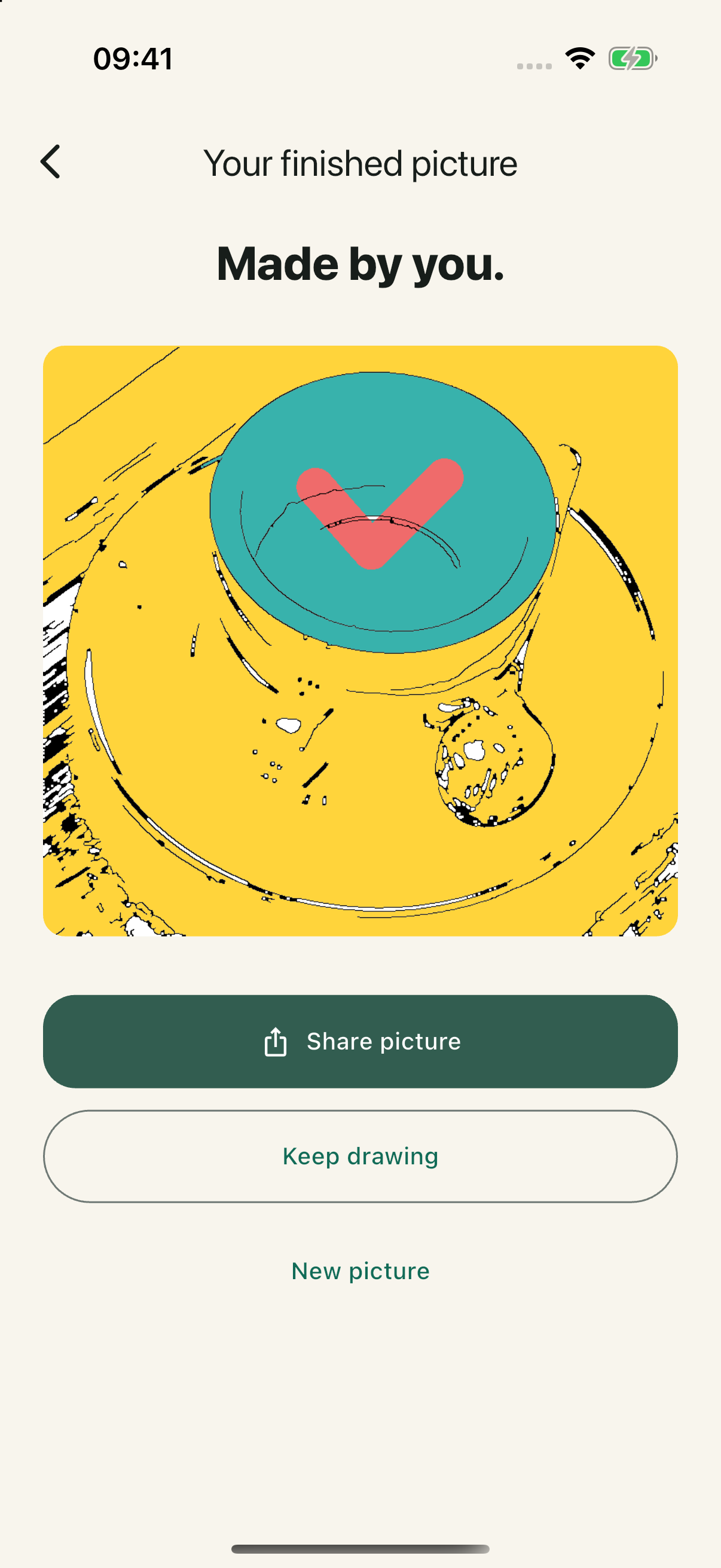
Share a finished PNG or keep drawing. 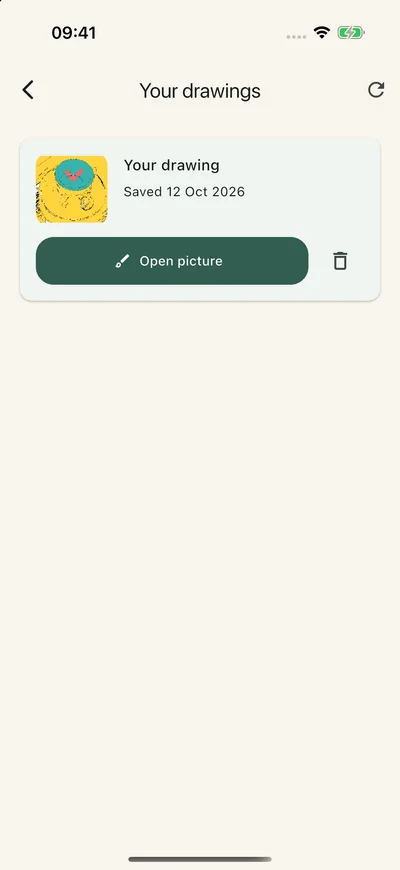
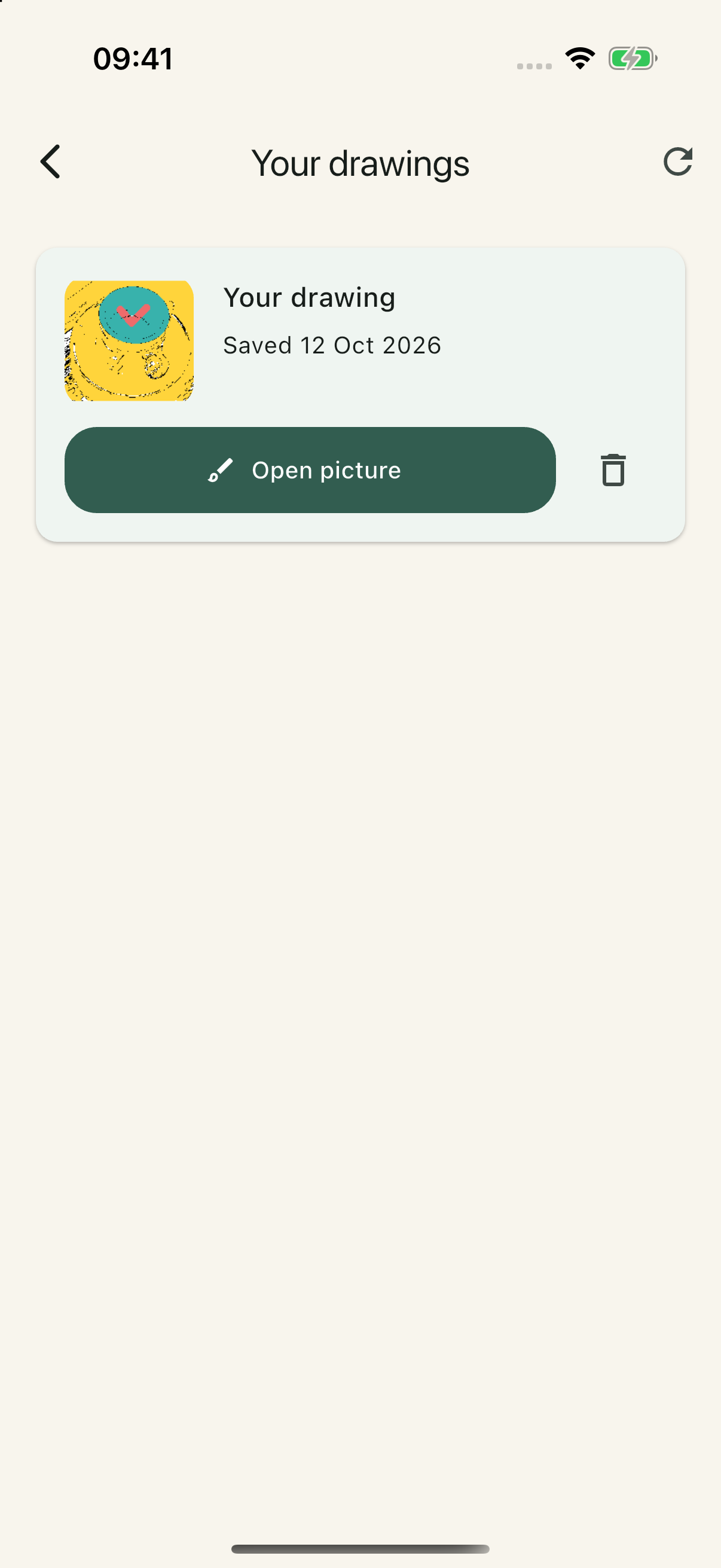
Open a saved picture from your local drawing library.
Scroll to explore the screens. Select an image to open it at full size.
Draw offline, without an account
Photo conversion, coloring, autosave and your drawing library work on your device. There are no accounts, ads or analytics in Photo Drawing, and the app does not upload your photos to a developer server. Sharing is your choice; the destination you select handles the exported picture.
Read about your photos & privacyPhoto Drawing support
For questions, bugs or privacy enquiries, email hello@jordydekoning.com. Include your device model, operating system, app version and what happened. Please avoid sensitive photos or personal information in a bug report.
- How do I get started?
- Choose the sample photo, take a still photo or pick one from your library. Select Simple or Detailed outlines, then start coloring. The app is built for iOS and Android; public store availability will be announced here.
- Why does a fill cover more than I expected?
- Photo outlines can contain gaps. A large fill shows a preview before you confirm it. Cancel the preview, try a different area or use the brush for precise details.
- Where are my pictures saved?
- Open the drawing-library button on the home screen to resume a saved project. Projects are stored in the app’s private local storage. Undo and redo cover the latest 20 actions in the current editing session; reopening a project starts fresh undo history.
- What if the camera or import does not work?
- Check camera access in your device settings, choose a different photo or use the bundled sample. JPEG, PNG and WebP are supported. If a HEIC photo is rejected, export a JPEG from your photo library and try again.
- How do I share or remove a picture?
- Tap Finish, then Share picture to choose a PNG destination in the system share sheet. Delete a project with its trash control in the drawing library. Device backups and copies you already shared are managed separately; see the privacy policy.